

Changing the BMC Login#
The NVIDIA DGX server includes a base management controller (BMC) for out-of-band management of the DGX system. NVIDIA recommends disabling the default username and creating a unique username and password as soon as possible.
Changing the BMC Login on the DGX-1#
Log into the BMC.
Open a browser within your LAN and go to
http://<BMC-ip-address>/.Use Firefox or Internet Explorer. Google Chrome is not officially supported by the DGX-1 BMC.
Log in, using qct.admin/qct.admin for the User ID/Password.
Select Configuration → Users.
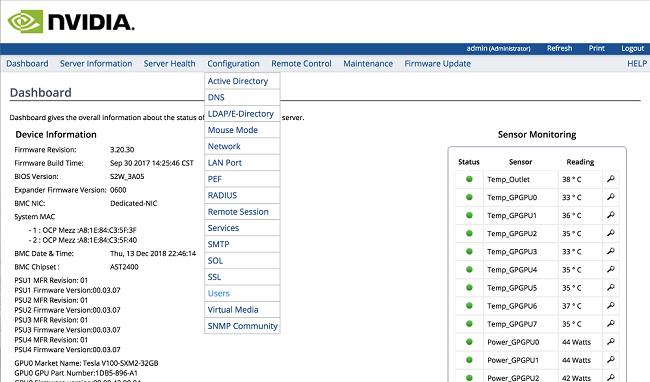
Add a new user.
Select an empty field and click Add User.
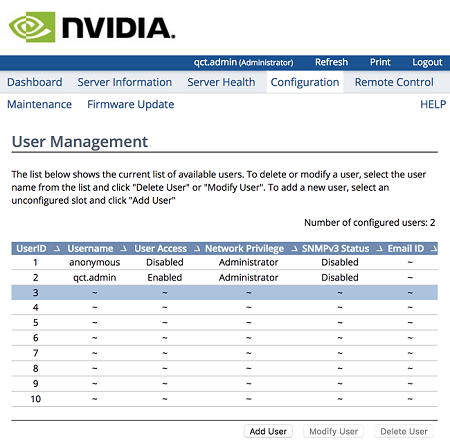
Enter new user information and click Add.
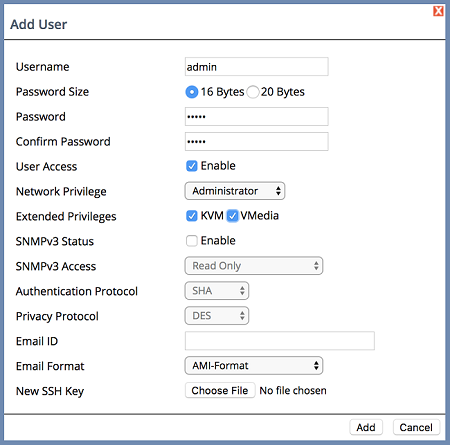
Log out and then log back in as the new user.
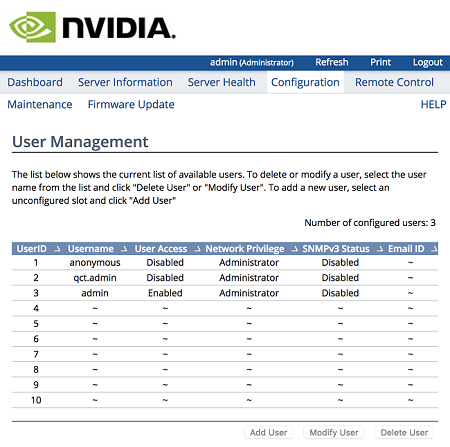
Select Configuration → Users.
Disable User Access for the user qct.admin.
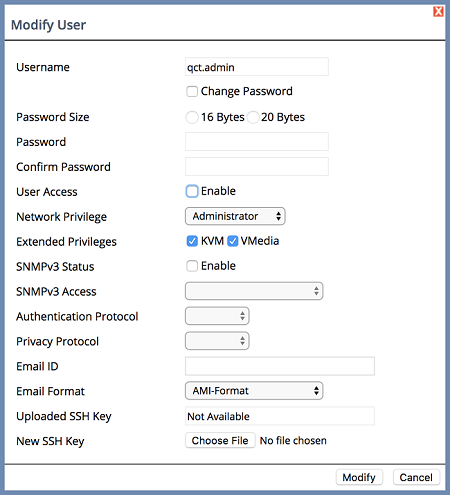
Select the user qct.admin user and select Modify User
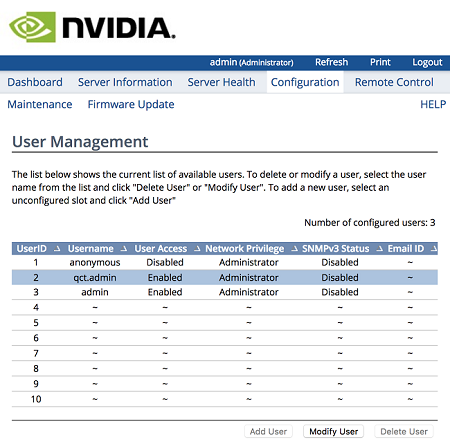
Deselect Enable in User Access and click Modify.
Ensure User Access is disabled for the user qct.admin.
Log out.
Changing the BMC Login on the DGX-2 or DGX A100/A800#
Log into the BMC.
Open a browser within your LAN and go to
https://<BMC-ip-address>/.Log in, using admin/admin for the User ID/Password.
Select Settings from the left-side navigation menu.
Select the User Management card.
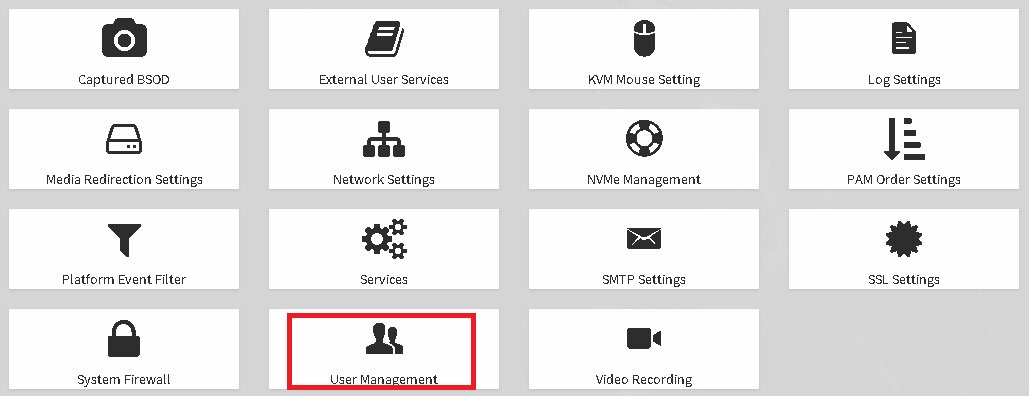
Click the green Help icon (?) for information about configuring users, then add a new user with unique username and strong password.
Log out and then log back in as the new user.
Select Settings → User Management.
Disable the admin and anonymous users.